

How to Scale Facebook Ad Launches and Why Proxies Are Essential?
The main obstacle to scaling FB advertising is routine. When creatives, links, and launch schemes are ready, they still need to be launched in every ad account.
In fact, there is no need to log into each advertising account and repeat the same actions over and over, because routine tasks are easily reduced with automation tools. One of them is Dolphin Cloud, which allows you to duplicate ad launches in any number of advertising accounts.
What is Dolphin Cloud and how does it work?
It is a multitool — a service for mass automated ad launching on Facebook. Dolphin Cloud works as follows: an ad account is connected to the system via API and then receives commands from the user. These commands can be sent to all accounts at once, so the scaling possibilities are practically unlimited. The entire system works directly through the browser — nothing needs to be installed anywhere.
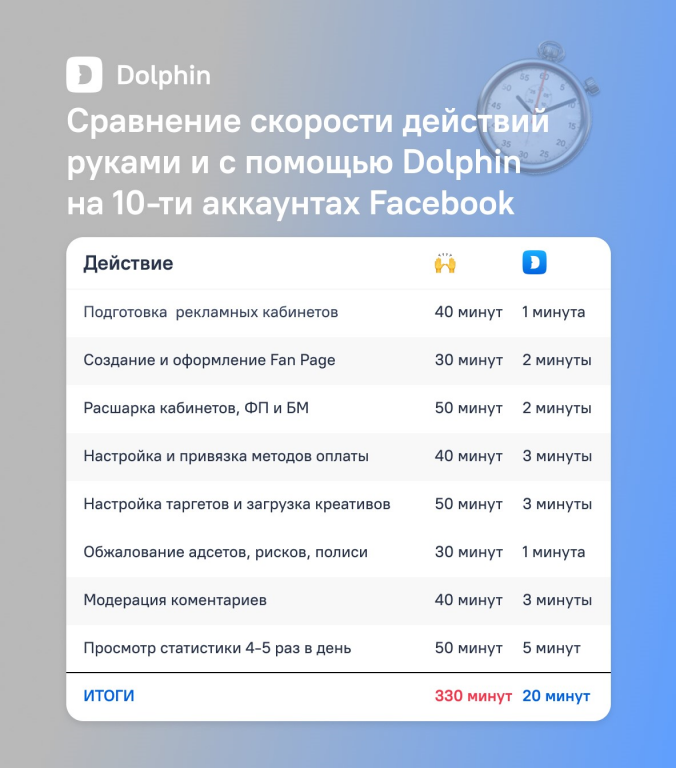
Auto-upload also opens up other possibilities:
- adding Fan Pages, BMs and working with large quantities of them;
- mass linking of payment cards to different accounts;
- working with comments under ads (auto-moderation, notifications about new comments);
- creating and sharing a pixel;
- centralized setup of auto rules and setting budgets and bids;
- linking one proxy to several accounts, as well as assigning each port to a separate account;
- teamwork in one interface without sharing logins and passwords.
How to use Dolphin Cloud?
The service interface is intuitive, so we will review only the key points.
Registration
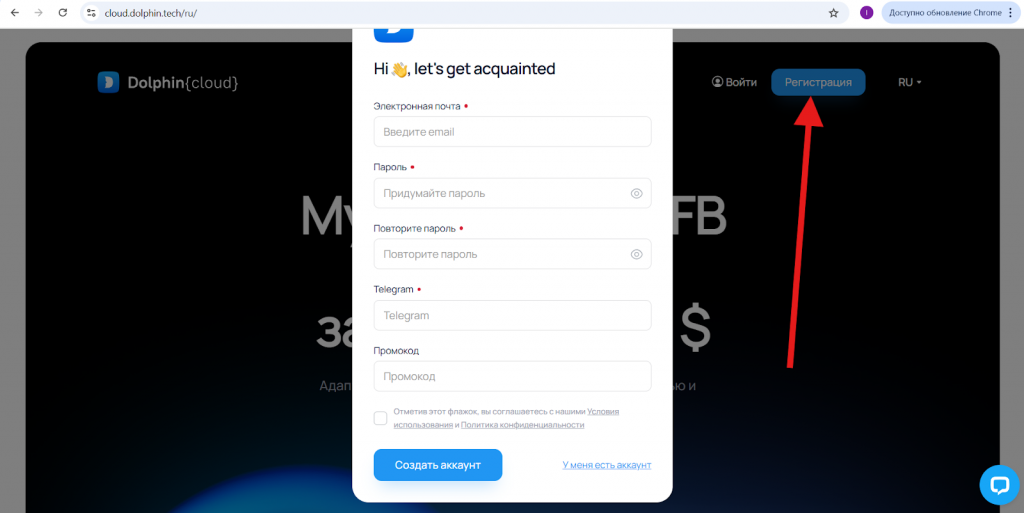
To register, go to the main page of the service, click the appropriate button and fill in the fields in the window.
Adding members and assigning roles
In Dolphin Cloud, you can add employees and assign roles to them. This is done in the “Users → Add user” tab.
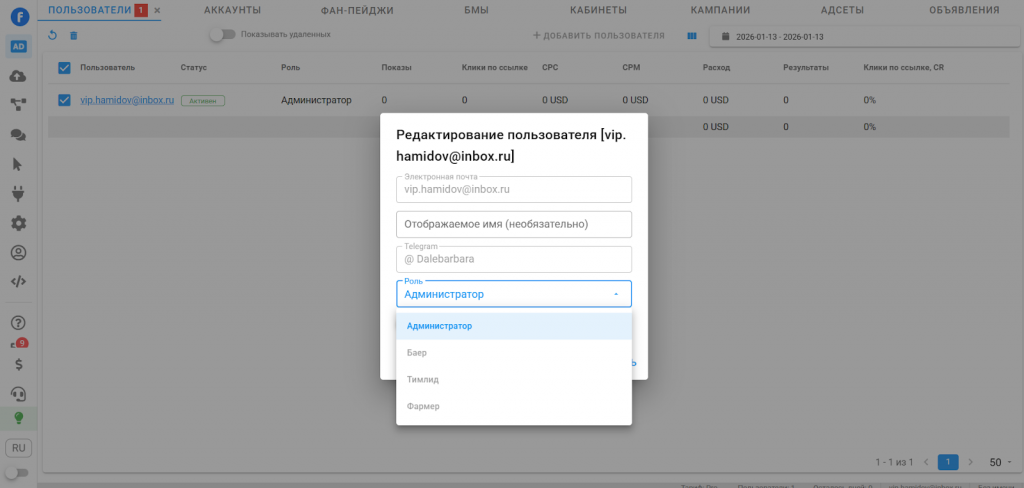
The capabilities and limitations of each participant depend on the role you choose for them. After adding a participant, you can transfer ad campaigns, accounts, cabinets, fan pages, etc. to them.
Launching and managing ads
After authorization in Dolphin Cloud, Ads Manager opens — the section for managing accounts and cabinets.
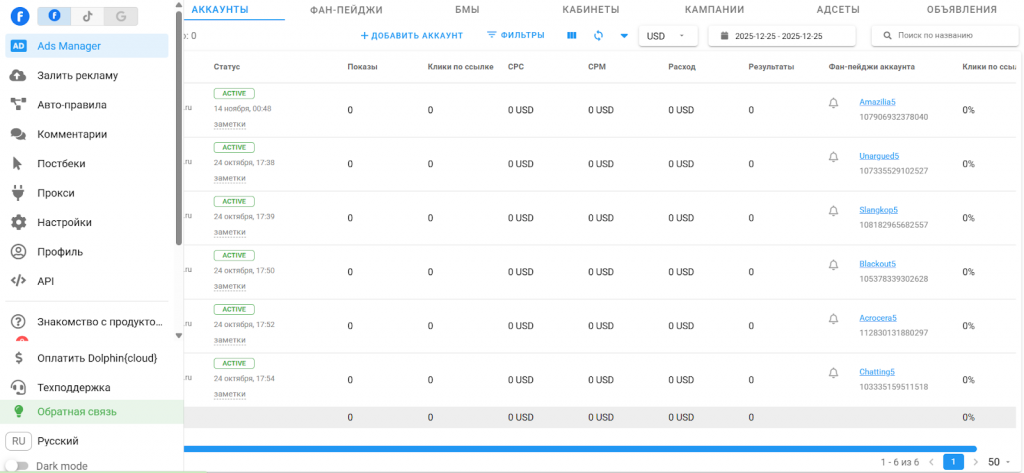
In Ads Manager you can:
- Add and delete ad accounts;
- Create BMs and FPs for ad accounts, as well as add existing ones;
- Link and unlink cards, manage expenses (for example, set limits) and switch accounts to prepayment/postpayment;
- View logs of account actions, enable or disable notifications;
- Create pixels;
- Manage campaigns, ad sets and ads (increase or decrease budget, pause and reactivate, duplicate, etc.);
- Transfer and delete accounts.
Almost all these actions are performed through the “Accounts” and “Cabinets” tabs. To perform them, it is enough to select the necessary objects and open the list of available operations.
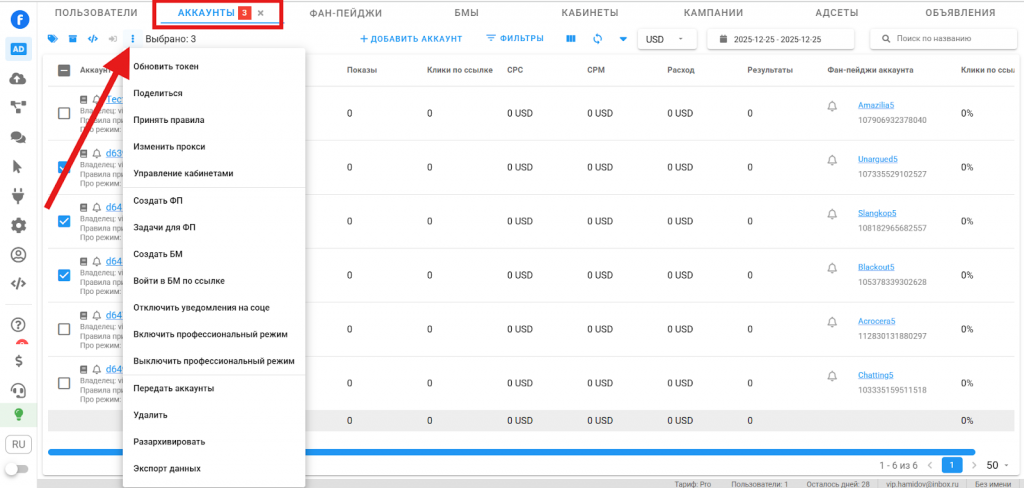
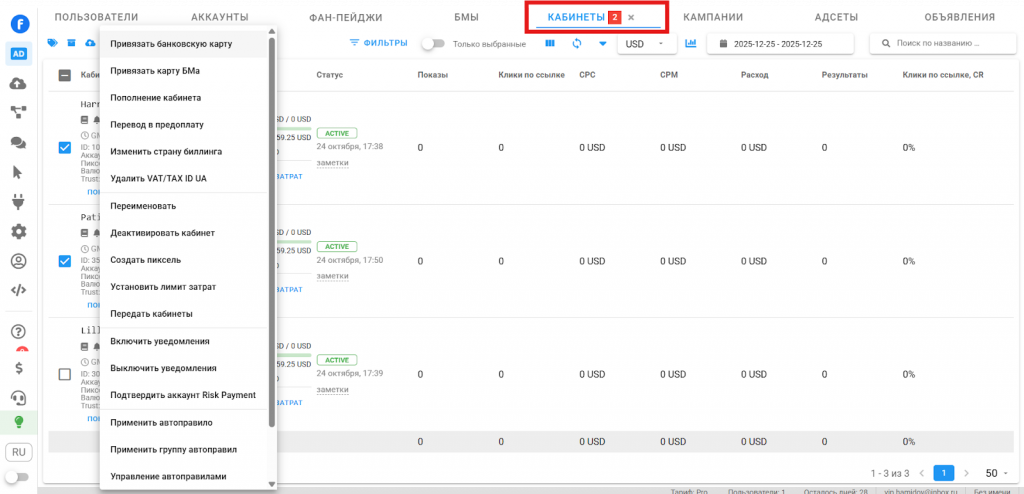
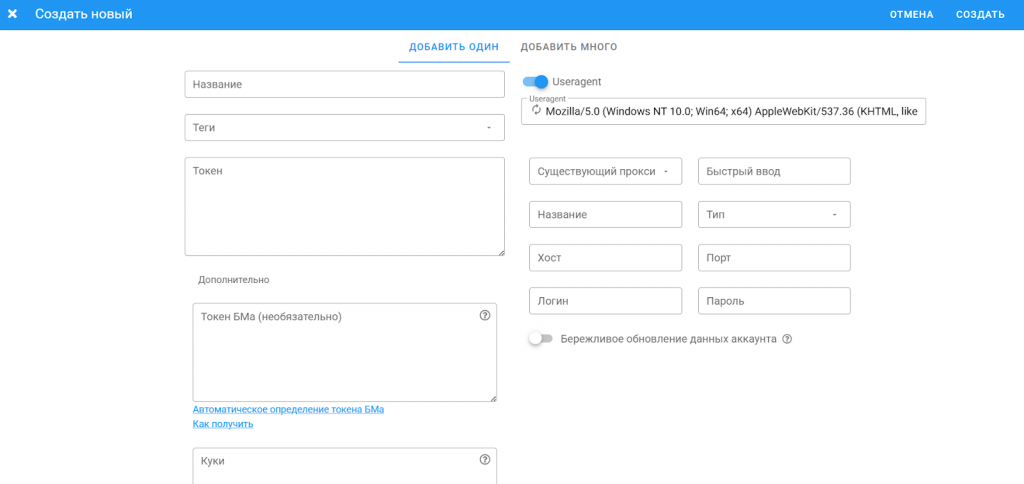
Where to start? To start working with the multitool, you need to create accounts. To do this, go to the Ads Manager tab, click the plus, and the add form will open. Be sure to specify:
- access token;
- proxy. You can select them from the list or enter them directly when adding;
- login and password.
You also need to add cookies. If necessary, you can change the user agent.
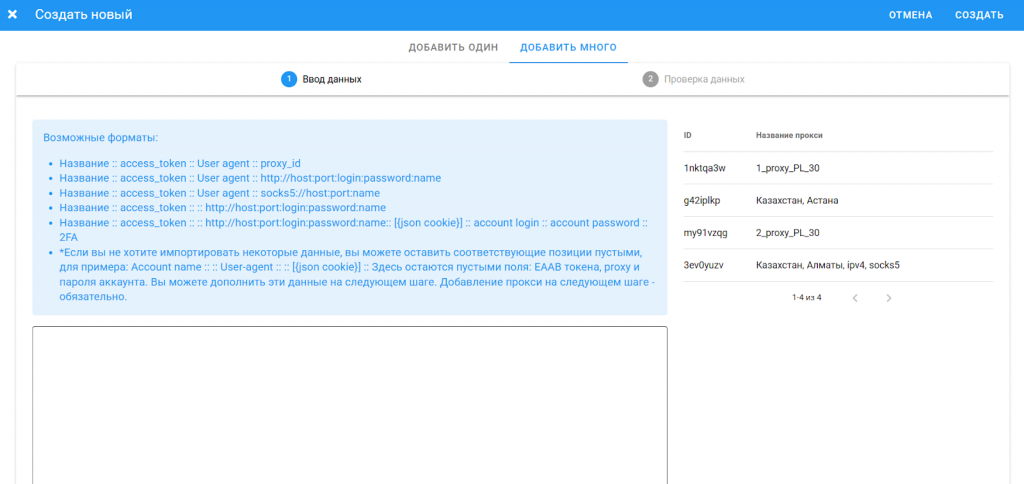
It is possible to add cabinets in bulk. To do this, select the “Add many” tab, then enter account and proxy data (or enter port data directly next to the cabinet data).
Launching ads. Creating campaigns, ad sets and ads is done almost the same way as in Facebook. In the left menu, open the “Upload ads” tab and then click “Create bundle.” Next, almost the same functionality as in the ad account will open, where you need to select the campaign objective, budget, targeting, etc.
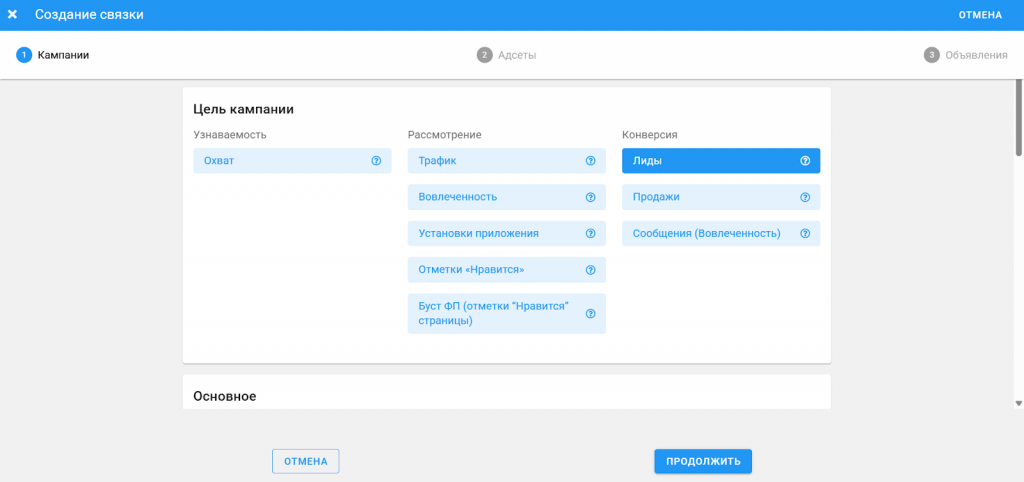
The created campaign can be saved as a template bundle in order to quickly launch it later with minimal changes. By the way, ready-made campaign templates can be sent to other team members so that they do not waste time creating and setting up ads from scratch.
Auto rules
Auto rules regulate campaign and ad set budgets simultaneously across all accounts, not just in one cabinet.
To set up an auto rule, go to the corresponding section and then specify:
- Name;
- Object of application: campaign, ad set or ad;
- Action: change budget or bid, or stop;
- Condition of action: reaching cost per lead, app install, achieving ROAS on the site, or other.
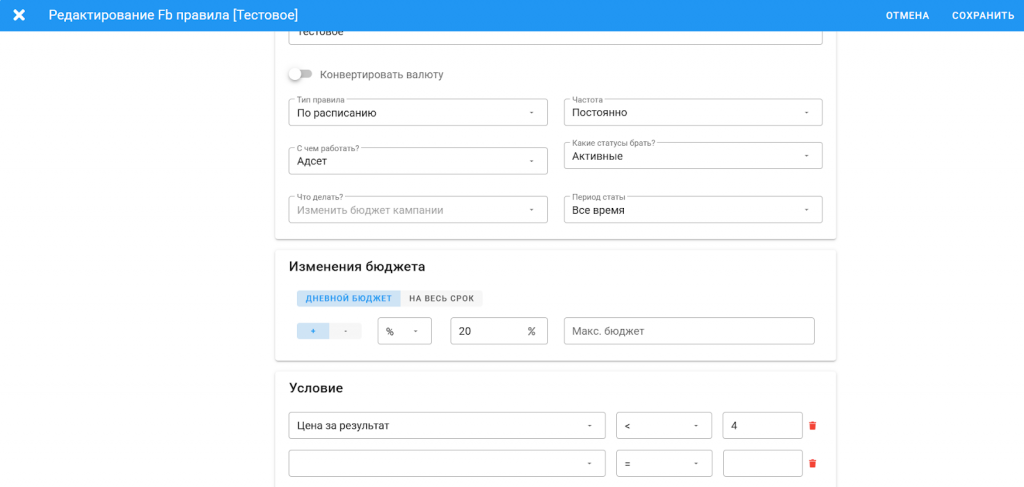
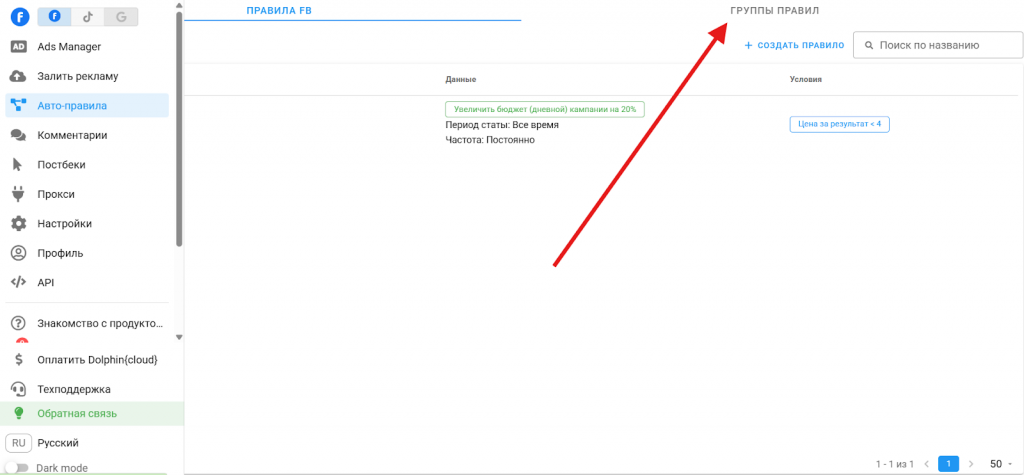
Auto rules can not only be applied to any campaigns, ad sets and creatives. They can also be transferred to other team members. If necessary, they can be grouped to apply a bunch of rules to the account at once.
Comments
This section loads comments that appear under advertising posts. Here you can also set up their automatic moderation by trigger words.
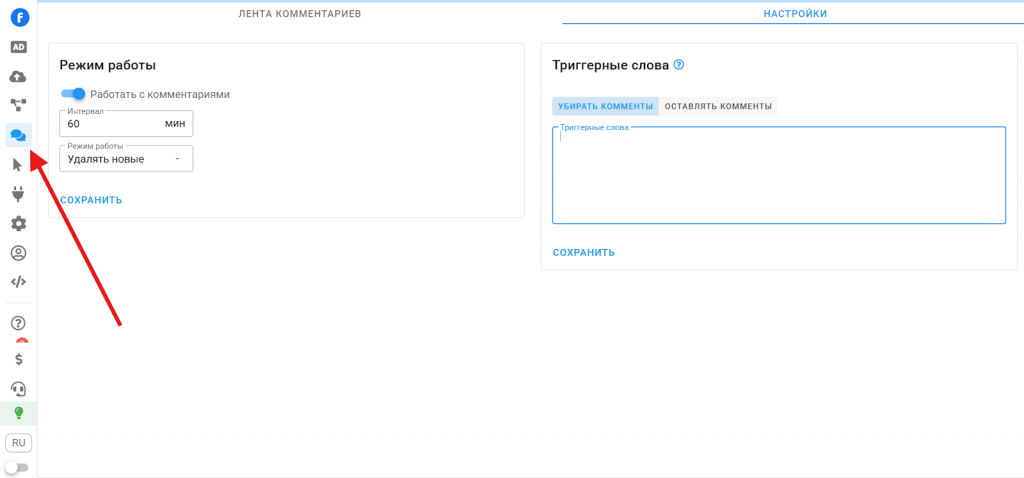
You can also configure opposite moderation — delete all comments except those that contain trigger words.
Proxies
The proxy section is simple and clear. There is a list of data from each port, as well as a button for adding. This button opens a form where proxies can be added either individually or in bulk.
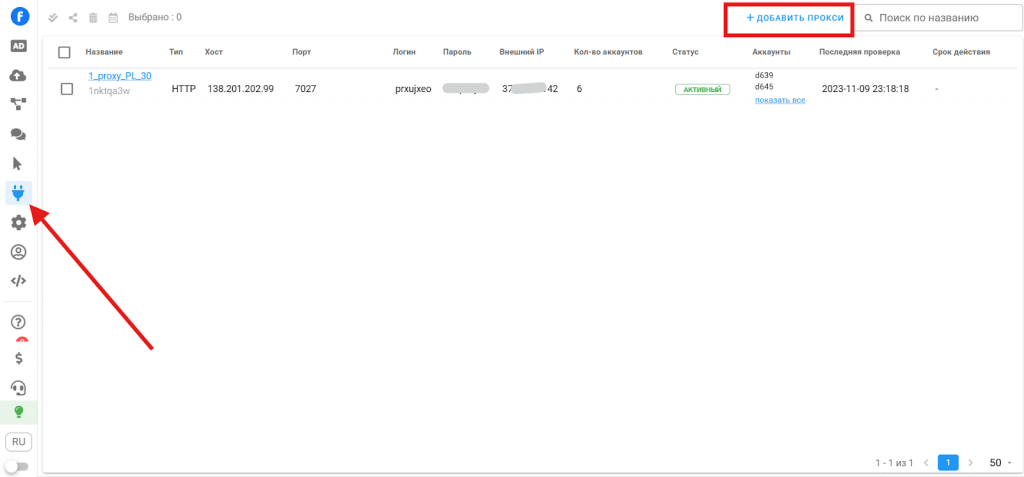
This is how a port is added using the example of KeyProxy.
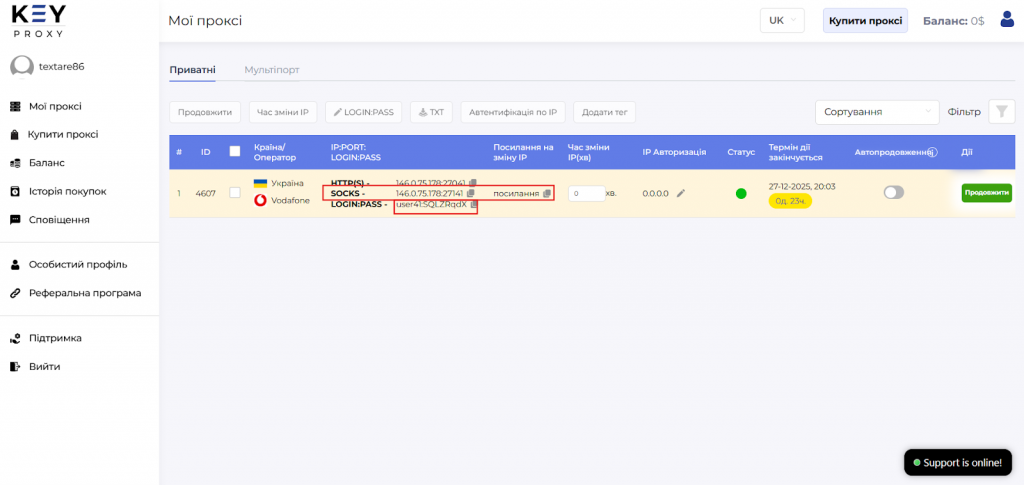
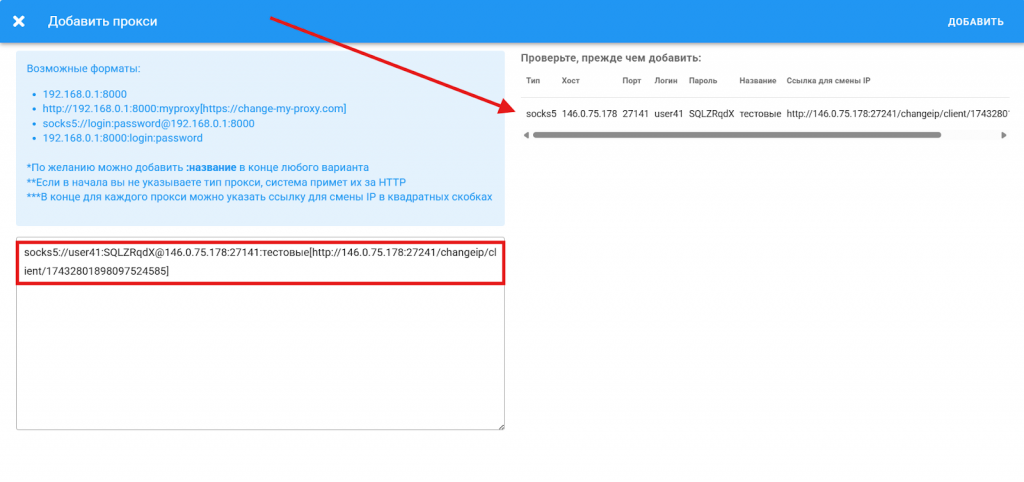
Copy the IP, login and password from the cabinet and add them to the Dolphin Cloud cabinet using one of the forms.
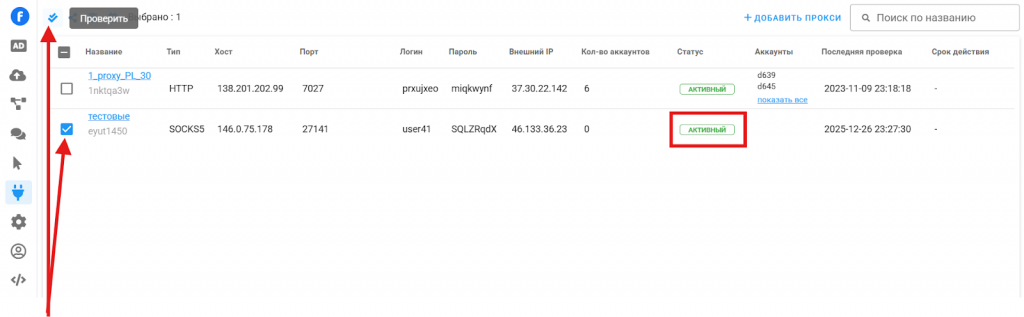
After adding a port, select it with a checkmark and click “Check.” If everything is fine, its status will change to active.
Important! Without proxies, Dolphin Cloud does not work. The reason is simple: if you send requests to Facebook through one shared IP or the service domain, FB will link all cabinets together and ban them. Proxies in Dolphin Cloud are needed so that:
- each account works through its own IP;
- requests look realistic and isolated;
- accounts are not linked to each other by network features.
The KeyProxy provider offers free trial ports. After testing, you can get a 20% welcome discount on the first payment using the promo code KEYPROXY.
Integrations with anti-detects
If you work with Facebook in an anti-detect browser and proxies are connected there, advertising cabinets can be easily imported into Dolphin Cloud together with their ecosystem. To do this, go to the settings section and copy the API key from there.
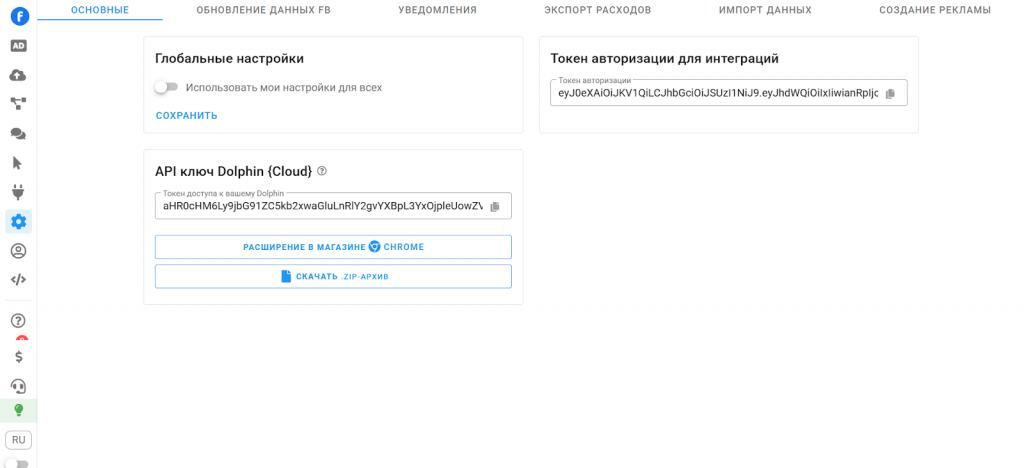
Then this key must be inserted into the corresponding field in Dolphin Anty, or download the extension and insert it there if you use another anti-detect.
Main conclusions
Dolphin Cloud includes the maximum number of necessary routine operations for working with Facebook and Tik Tok. Each of them can be launched in one or two clicks and implemented in any number of cabinets. It is possible to create action templates for ad setup and budget management and share them with other team members.
But without proxies, this powerful system does not work. It is proxies that isolate accounts from each other, protecting them from bans. And KeyProxy supplies real IPs of real users that are trusted in advertising networks. Therefore, Dolphin Cloud + KeyProxy = secure automated work with a large number of advertising accounts.