
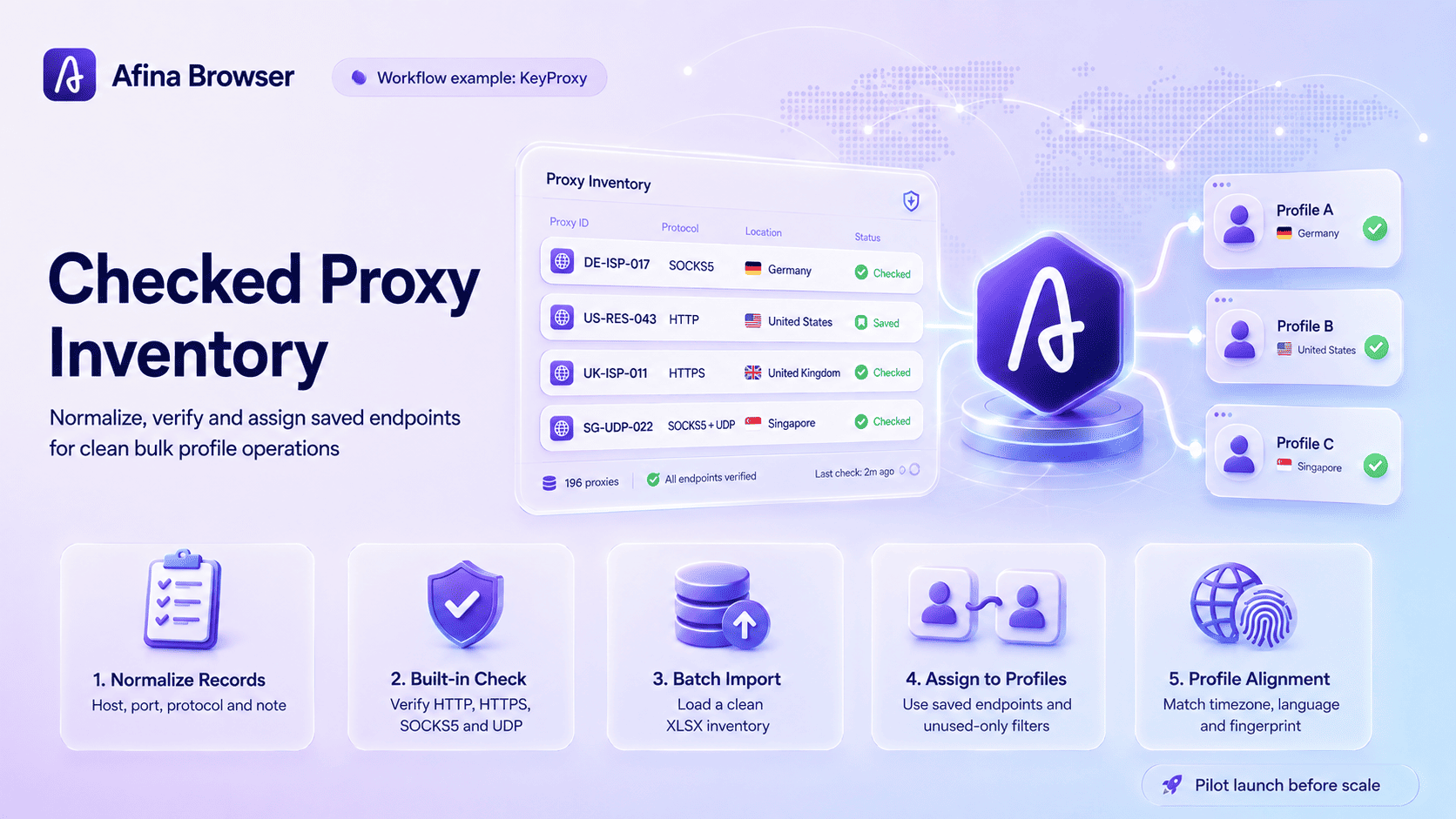
How to build and assign a checked proxy inventory in Afina Browser
A checked proxy inventory means a reusable list of endpoints that have been normalized, tested, and assigned to the right browser profiles. Teams build one to replace improvised copy-and-paste work with a repeatable setup for individual or bulk account operations. The main risks are malformed credentials, duplicate assignments, dead endpoints, IPv6 addresses, and a profile whose browser settings contradict the proxy location.
The workflow below starts with one proxy and ends with a controlled batch. Use the proxy management tools in Afina Browser to validate the small setup first. Scale only after the route, country, and profile settings behave as expected.
Define the finished workflow before importing anything
A good proxy inventory has a clear answer for every row: which endpoint is this, has it passed the check, and which profile owns it? If any of those fields is unclear, importing a larger file only produces a larger cleanup job.
Decide whether the project needs static ownership or a pool. Long-lived accounts usually need a stable assignment. Short research tasks may use a controlled pool, but the change policy still needs to be explicit. Avoid changing the country during an active session.
Write down four decisions before opening the proxy form:
- accepted protocols, such as HTTP, HTTPS, or SOCKS5
- IPv4-only input, because Afina does not accept IPv6 proxy addresses
- one naming convention for notes, groups, and profile labels
- a rule for unused, failed, and retired endpoints
This preparation takes minutes. It prevents the common mess where identical endpoints appear under different names and nobody knows which account used them last.
Step 1: normalize a single proxy record
Start with one known endpoint. Separate host, port, login, password, protocol, and any provider-supplied IP-change URL. Do not paste labels or spaces into the address field. If the source list uses full connection strings, confirm their order before processing the rest of the file.
For SOCKS5, decide whether the workflow requires UDP. The protocol name alone does not prove UDP tunneling. WebRTC, QUIC/HTTP3, and WebTransport need a SOCKS5 endpoint that actually carries UDP traffic.
Add a useful note while the record is still fresh. Country, city or pool, purchase batch, and purpose are better than “proxy 14.” A note should help another operator understand the endpoint without reopening the supplier dashboard.
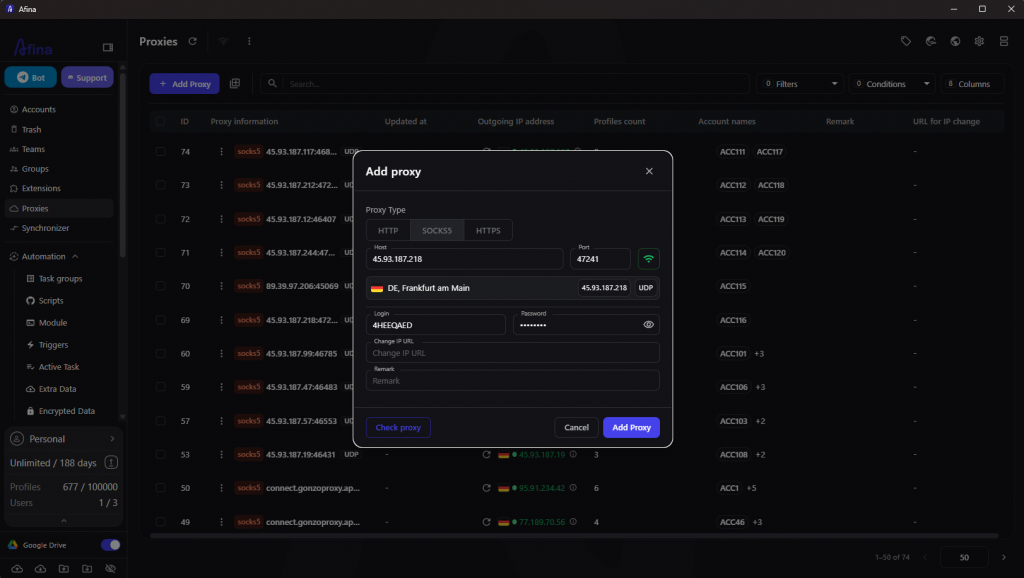
Step 2: run the built-in check before saving
Complete the required fields and use the proxy check. Afina can verify HTTP, HTTPS, and SOCKS5 endpoints. SOCKS5 receives an additional UDP test. A record that fails the normal add-form check is not saved, so fix the credentials or replace the endpoint instead of forcing it into the inventory.
Read the result as a preflight check, not a lifetime certificate. Credentials can expire. Provider pools rotate, traffic limits run out, and the route can change after the record was added. The inventory needs a recheck policy, especially before launching a large batch after a pause.
When one endpoint passes, repeat the exact sequence with a second record. Two successful manual runs are enough to expose most formatting mistakes before they are copied into an XLSX file.
Step 3: add a batch without losing traceability
Afina supports bulk proxy import from the Proxies section. Its XLSX structure includes fields such as ID, UUID, Proxy, Type, Remark, ChangeIpUrl, and Accounts. Keep the template structure intact. Do not edit ID or UUID values in exported files.
For a new external list, import only the fields required by the documented template. Keep a clean source copy outside the working file so a failed transformation can be traced back. And never assume that writing profile names into an Accounts column will create new bindings during this import. Assignment is a separate operation.
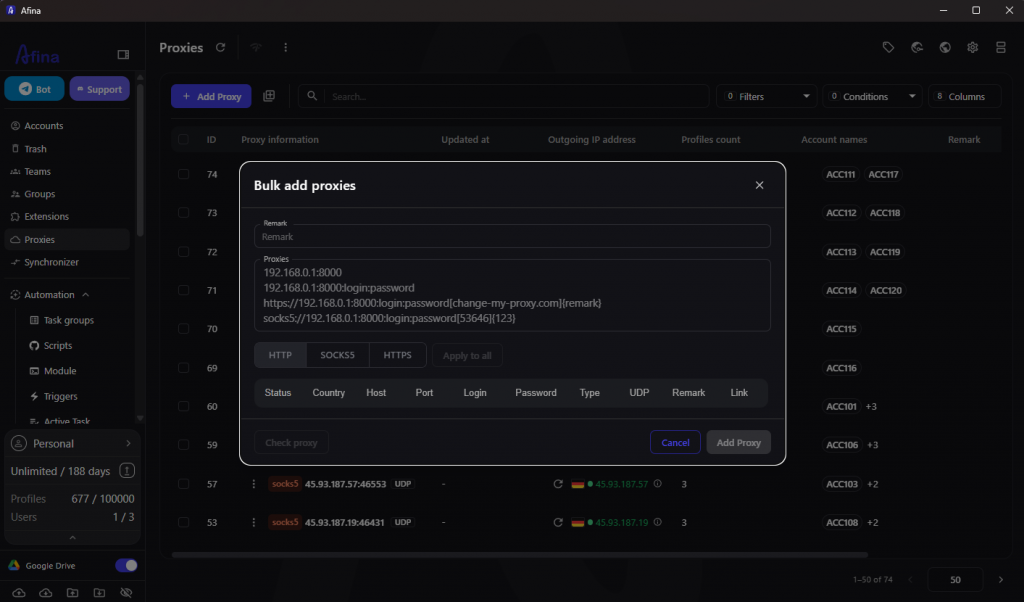
After import, filter the inventory and inspect a sample from the beginning, middle, and end of the batch. Check protocol, address formatting, notes, and status. A sample review catches shifted columns and repeated values quickly.
Step 4: assign proxies to profiles
For one profile, open its Proxy tab or click the Proxy cell in the Accounts table. You can enter a new endpoint, select a saved one, or choose no proxy. When selecting from the saved inventory, the unused-only filter helps avoid accidental reuse.
For a batch, select the target accounts, open the additional-actions menu, and choose the proxy assignment action. Select the prepared endpoints and use the unused-only filter when the project requires one proxy per profile.
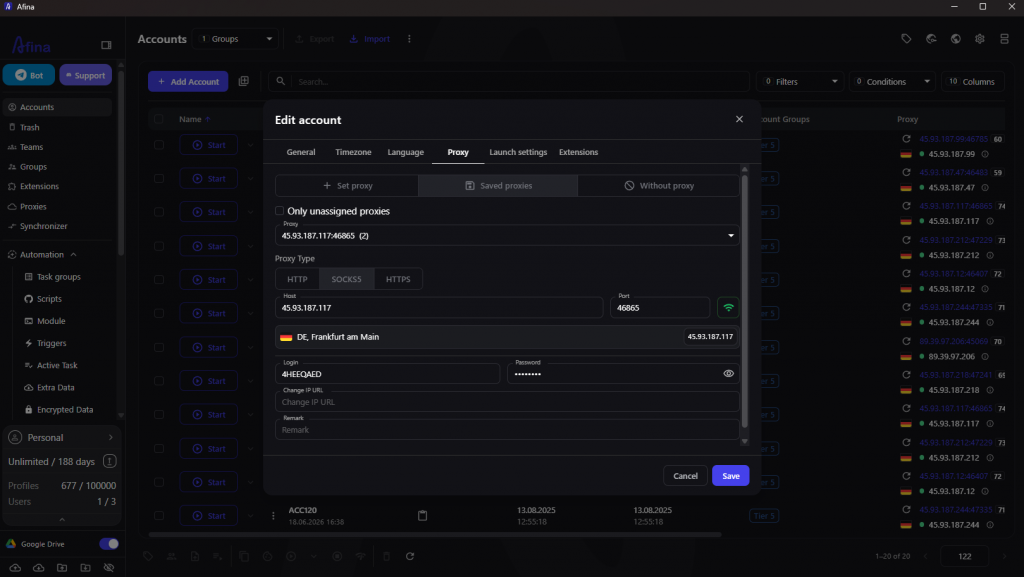
Assignment is where naming pays off. A country code, pool label, and batch marker in the note can reveal a mismatch before the profile starts.
Choose the method by workload, not habit.
| Method | Best for | Main control point | Common mistake |
|---|---|---|---|
| Profile editor | One new account or a repair | Verify every field before save | Reusing an endpoint already assigned elsewhere |
| Accounts table cell | Quick correction on an existing profile | Confirm the selected account row | Editing the wrong row after sorting |
| Bulk assignment | A prepared group of profiles | Filter to unused proxies and review counts | Selecting more profiles than available endpoints |
| XLSX mapping through Accounts import | Planned updates with stable account IDs | Preserve AccountID and template columns | Changing IDs or shifting the column order |
The manual route gives the operator more context. The bulk route gives speed, but only after the inventory itself is clean.
Step 5: align the browser profile with the route
A successful proxy check does not validate the whole browser profile. Review time zone and language against the intended IP country. Then inspect Canvas, WebGL, the selected operating system, and installed extensions. The values should describe a plausible device instead of a random collection of toggles.
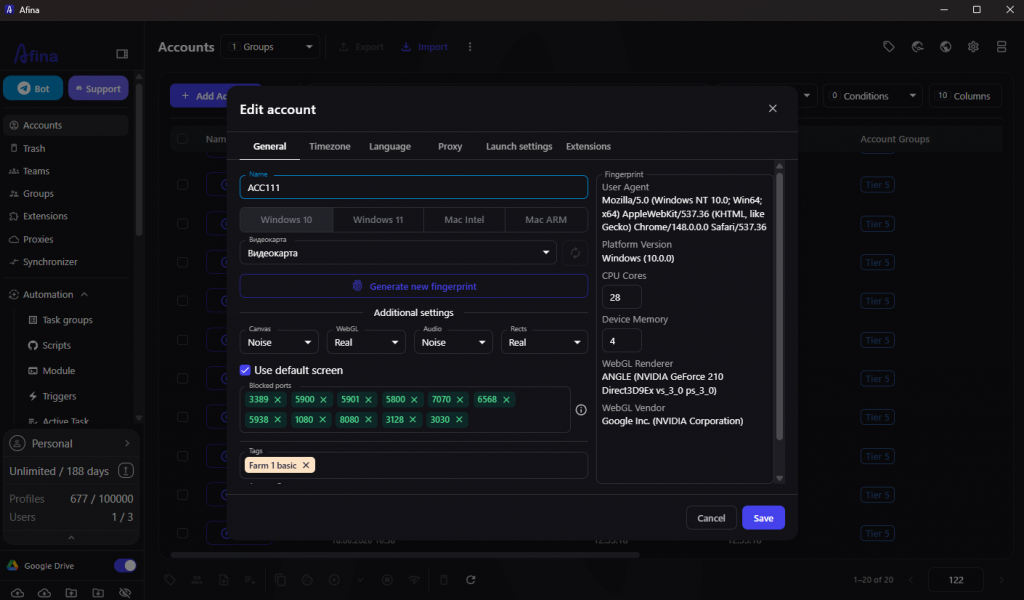
VPN extensions deserve special attention because they can override the proxy configured in the profile. If the visible IP differs from the assigned route, disable the extension and test again before changing fingerprint settings.
Session data also belongs to the profile. Afina stores cookies, cache, localStorage, and IndexedDB separately for each profile. Keep that separation intact when importing cookies or moving account data.
Step 6: validate the running profile
Launch one profile from the batch. Confirm the public IP and country, then check any protocol required by the task. A real-time application may need WebRTC and QUIC. A normal web workflow may only need stable HTTP traffic.
Watch for country changes during the session. Afina includes a setting that can block a profile when the proxy country changes. It is useful for stable-account workflows where a mid-session location jump should stop work rather than continue silently.
If the pilot profile is clean, start a small group. Do not open the entire inventory on the first run. Chromium profiles consume memory and CPU, and infrastructure errors become harder to diagnose when dozens of windows fail at once.
Troubleshooting by symptom
When something breaks, change one layer at a time. This preserves evidence.
| Symptom | First check | Next action |
|---|---|---|
| Proxy will not save | Required fields and credentials | Recheck the endpoint or replace it |
| SOCKS5 connects but UDP fails | Provider-level UDP support | Use a confirmed UDP-ready endpoint or choose a non-UDP workflow |
| Wrong country appears | Pool rotation and IP-change behavior | Stop the session and review provider settings |
| WebRTC IP disagrees with the route | VPN extensions and UDP path | Disable the extension, retest, then review WebRTC mode |
| Several profiles share one proxy unexpectedly | Existing assignments and filters | Unassign duplicates and repeat bulk assignment with unused-only filtering |
| XLSX import looks shifted | Template columns and order | Restore the original template and rebuild the file |
Avoid “fixing” the fingerprint first when the endpoint itself is failing. Network evidence comes first. Browser-side tuning cannot repair expired proxy credentials.
Operating checklist for every new batch
Use the same sequence each time:
- normalize one source record and confirm the field order
- test two endpoints manually, including UDP when required
- prepare the batch in the documented template
- import and sample-check the inventory
- assign saved endpoints to the intended profiles
- align time zone, language, and fingerprint settings
- launch one profile, then a small group
- record failed or retired endpoints instead of silently recycling them
The result is a proxy inventory that can be audited and repaired. More importantly, another team member can understand it without reconstructing every decision from browser history.
Promo codes for new users:
- SALE20 - 20% off all plans except Max
- SALE30 - 30% off the Max plan
FAQ
Which proxy protocols can I add to Afina?
Afina supports HTTP, HTTPS, and SOCKS5 proxies with IPv4 addresses. IPv6 proxy addresses are not supported.
Does SOCKS5 automatically mean UDP support?
No. The provider must support UDP tunneling on that endpoint. Run the built-in UDP test and verify the active session if the workflow needs WebRTC, QUIC, HTTP/3, or WebTransport.
Can I assign proxies to many profiles at once?
Yes. Select the accounts, open the additional-actions menu, and use the proxy assignment action. Filtering for unused endpoints helps preserve one-to-one assignments.
Should I import or assign proxies first?
Build and check the proxy inventory first. Assignment becomes easier to audit when every endpoint already has a clear protocol, note, and status.